%202%20(1).png?width=55&height=58&name=Group%20(4)%202%20(1).png)
Step 1 - Head to the integration settings
Head to your Account Settings and click on the integration tab:
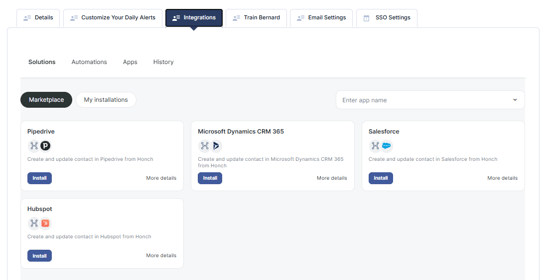
Step 2 - Install the Pipedrive integration
This time we're going to click install next to Send a contact to Pipedrive (if you've not previously installed Pipedrive and get stuck with connection, please follow the instructions under the Pipedrive Feeds page)

Step 3 - Map the fields you want sent to Pipedrive when contacts are transferred
If you're accounts are already connected you should be able to simply connect Continue on the next page. You'll then map the fields and click continue and start. This will turn on your live connection until you stop it.
Next just head to the Search page and test it out.
You can select up to 200 contacts at a time to transfer them to Pipedrive. Simply expand your page view to 200 results per page so that you can select the maximum number if required.