%202%20(1).png?width=55&height=58&name=Group%20(4)%202%20(1).png)
If you're a Dynamics business, you can automatically programme Honch to feed prospects overnight so that you can automate outreach and keep your data fresh. This is a guide to connecting the 2 systems.
You will need support from your system administrator to create the initial connection, but once this is done the integrations are simple to set up.
Step 1 - Head to the integrations tab:
Head to your Account Settings by hovering over your initials in the top right and click on the integration tab:
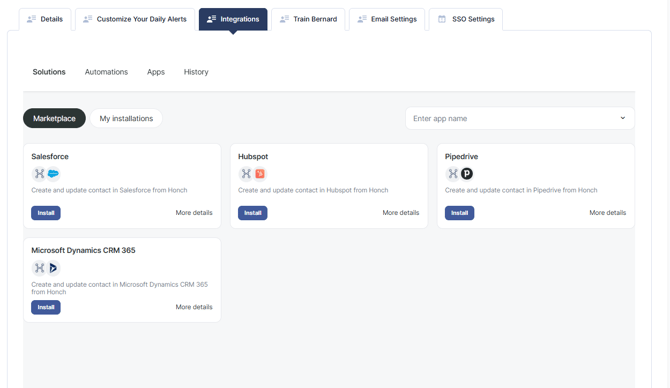
Step 2 - Create the Dynamics connection:
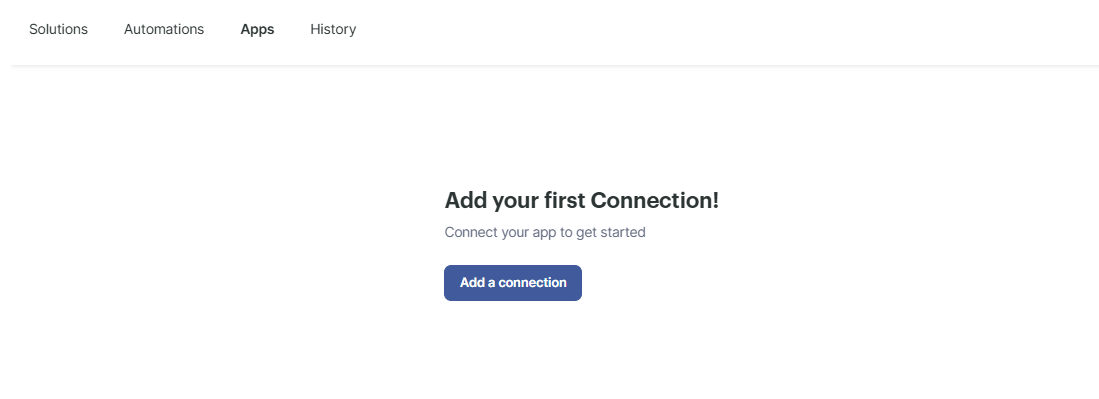
Click on the Apps tab and then Add a connection:
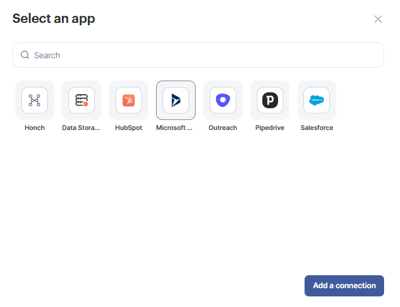
Select Dynamics and the Add a connection:
Enter your Dynamics domain, click continue and then login to your Dynamics account:
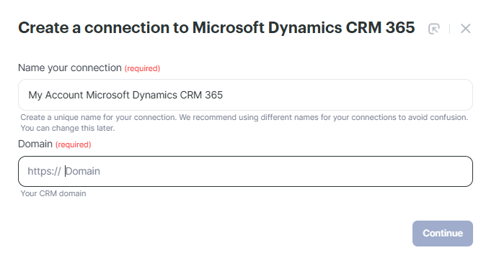
For most users, at this stage you will need to request permission for the installation from your system administrator. Our integrations are powered by our partner Albato, so you'll need to give the app authorisation.
Note for system admins:
If you have trouble giving authorisation, please follow these steps:
Step 1: Grant Admin Consent in Enterprise Applications
- Open Azure Active Directory (or Microsoft Entra ID)
- In the left sidebar click Enterprise Applications
- Search for Albato and click on it
- In the left sidebar click Permissions (under the Security section)
- Click the blue button "Grant admin consent for [your organization name]"
- A popup will appear — sign in as admin and click Accept
⚠️ Important: Make sure to complete this step directly in the Azure Portal. Approving via the email notification Microsoft sends does not always apply consent org-wide.
Step 2: Check Assignment Required Setting
- In the same Enterprise Application (Albato), click Properties in the left sidebar
- Find "Assignment required?" and make sure it is set to No
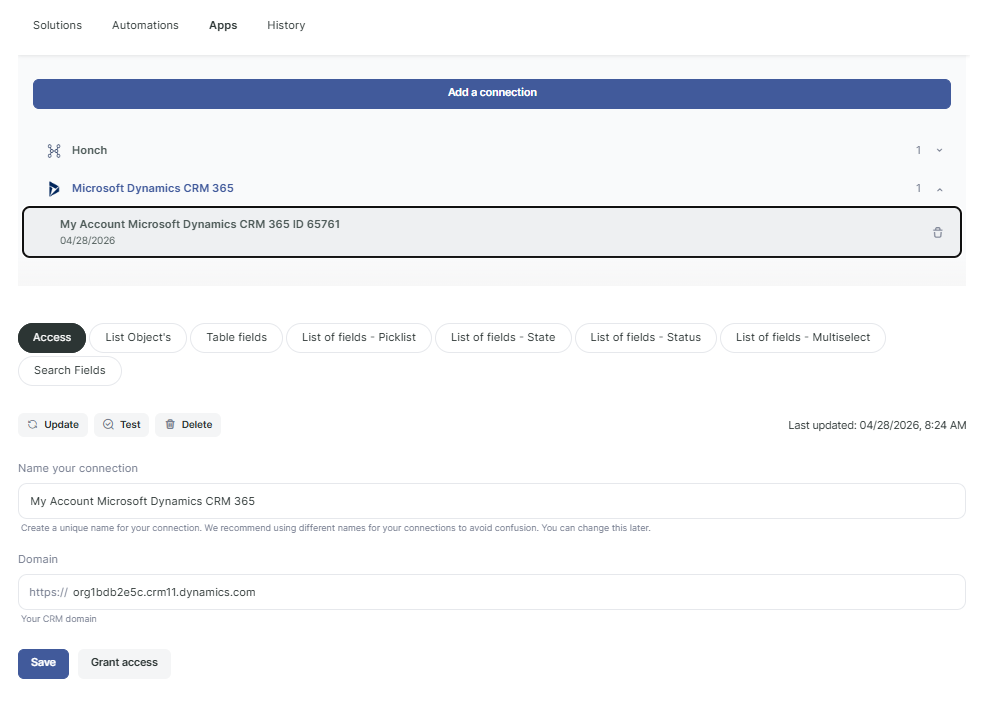
Once permission is granted, go back to the Apps section, click on your Dynamics connection, click on Grant access once more, and login again. This time your account should connect.