%202%20(1).png?width=55&height=58&name=Group%20(4)%202%20(1).png)
If you're a Dynamics business, you can automatically programme Honch to feed prospects overnight so that you can automate outreach and keep your data fresh.
There are currently 5 integration options that you can install:
- Newly appointed decision-makers
- Newly promoted buyers
- New contacts from your Company Lists (so that you can treat target accounts or clients differently)
- New buyers appointed that used to work at companies on your Previous Company Lists
- Update and deactivate contacts who have left businesses or unsubscribed from Honch
These are straight forward to set up and below we've provided a guide:
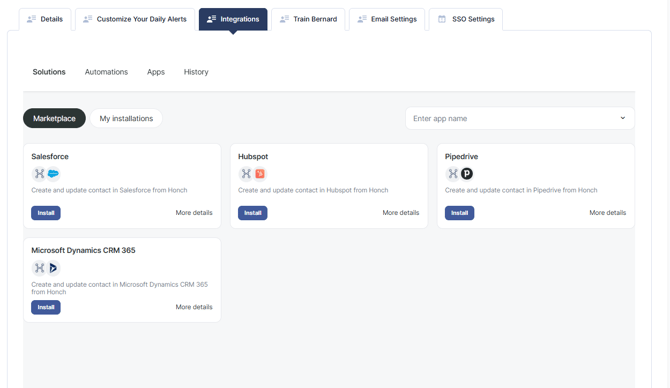
Step 1 - Head to the integrations tab:
Head to your Account Settings by hovering over your initials in the top right and click on the integration tab:
Step 2 - Install the Dynamics integration and choose your scenario:
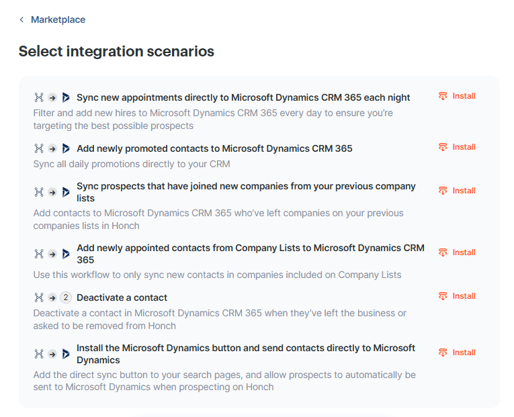
You'll now need to install the Dynamics app by clicking Install and choosing an integration option. For this example we will use the new hires, so I will select the "Sync new appointments directly to Microsoft Dynamics CRM 365 each night" and install:
Step 3 - Select your connections:
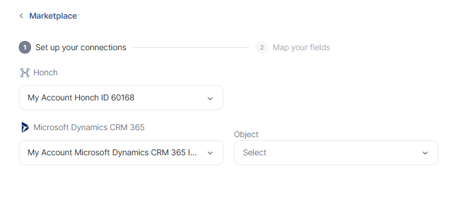
You'll now be asked to choose your Honch connection, Dynamics connection and the type of object you'd like to create (usually contacts or leads), click continue:
Step 4 - Filter the new hires:
Unless you want to sync every contact to Dynamics, the first thing you need to do is create a filter against the contacts. You can do this by all of the usual fields you find in our app, and can select them like this:
Step 5 - Map your Dynamics Fields to Honch:
You now need to map your Dynamics fields to our fields. Expand the Microsoft Dynamics section and begin mapping your fields to Honch:
Please Note - If you want to create a lead source field or another field to trigger automation that doesn't exist in Honch, this is fine and you can manually add field values instead of using Honch fields.
Step 6 - Starting the integration
Once you're happy that you've mapped the required fields, click continue at the bottom and you'll see a new Installed Scenario:

To turn this on simply shift the slider to the right and you're all set up.
What happens next?
You'll now start receiving new contacts daily to your Dynamics system that match your criteria. They are usually transferred overnight between 12am-3am, ready for you first thing in the morning.
Setting up other workflows:
The set up is the same for each scenario, but there are a couple of differences to be aware of:
- Newly Promoted Buyers - The set up is the same and you can transfer all newly promoted decision-makers each day. However, this will also look for existing contacts in your system and update job titles. When using this workflow, we recommend syncing a job title updated field so that you can filter by these as not all will be newly created.
- New Contacts from Company Lists - You'll find an additional filter box here where you can enter company list names so that you can treat prospects differently. If your list name is "Clients 2026" simply enter this in the list name box.
- Previous Company Syncs - If a contact used to work in a company on any of your previous company lists then it will be synced across and treated accordingly.
- Update and Deactivate Contacts - Each day we remove contacts as well as add them. About 90% of these have left businesses, while the remaining 10% have requested to be removed. Rather than delete your data, we mark this up as either Left or Unsubscribed. The integration firstly looks for the contact in your system, and then you can choose a field to have this tagged.
Any questions or help required, just drop us a line at clients@honch.co